
Create and modify a new publisher in SoundStack Stream.
Intro
Publishers are a way to organize your different stations, steams and shows within one SoundStack account.
Creating a publisher
- Login to SoundStackStream.
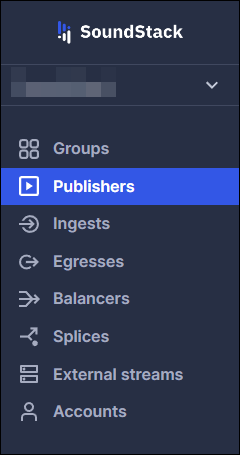
- From the left-side navigation menu, click on Publishers.

- Click on the blue Create button from the top right corner of the page.

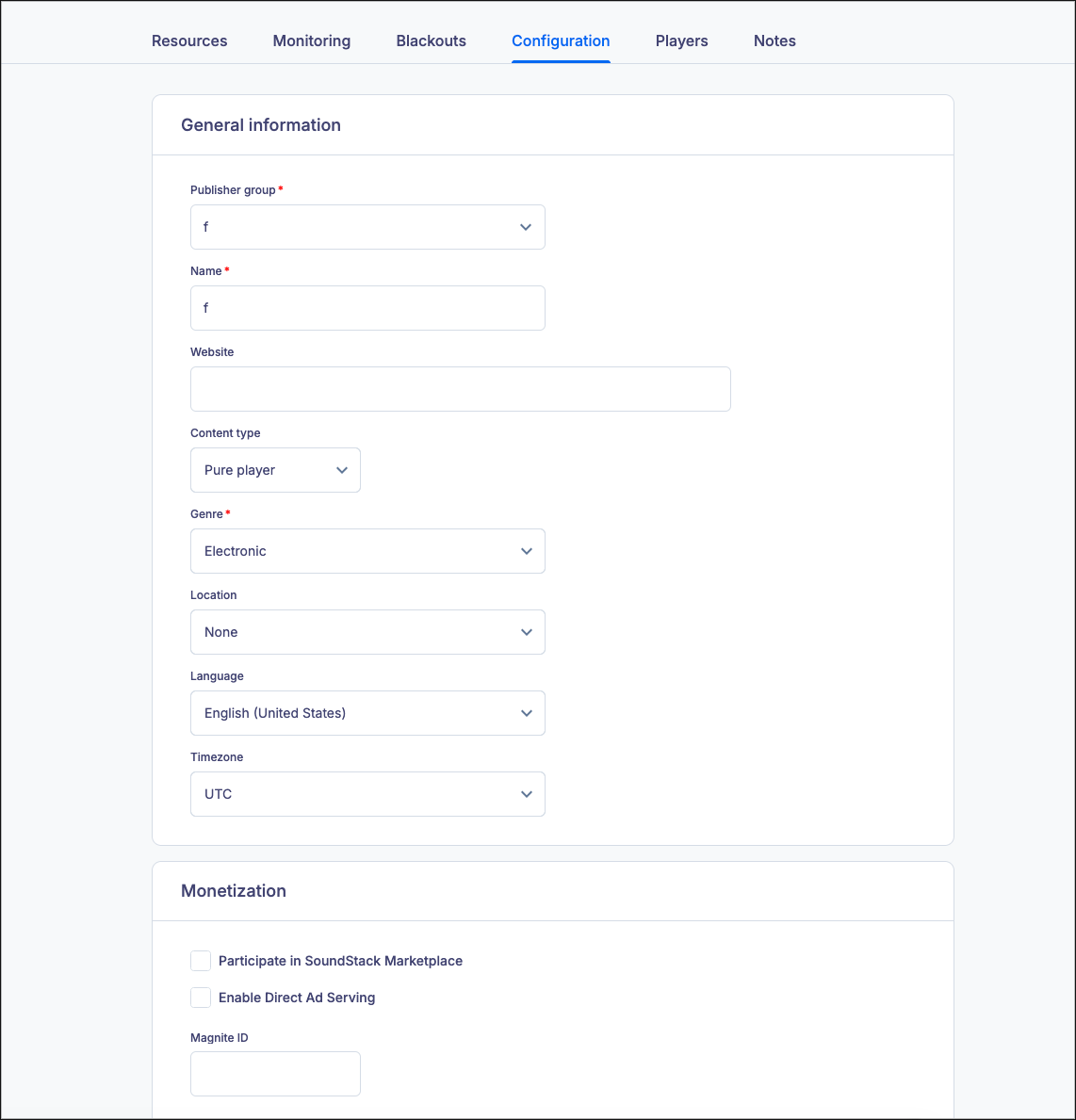
- Complete the fields with your Group's information as follows:

- Publisher group - Find and select the Group in the dropdown.
- Name - Create a published name for use according to your business requirements.
- Content type - Select the type of content that you are going to use for this Publisher. You can choose between Pure Player, Broadcaster, Aggregator, On Demand or Podcast.
- Genre - Set the genre accordingly for this publisher.
- Location - The location setting is very important and has a direct impact on the campaign start hours in Monetize.
- Language - Set the language accordingly.
Timezone - Select the correct time zone based on the publisher's location.
- Fill in the Monetization fields if the service is available according to your SoundStack agreement:

- Participate in SoundStack Marketplace - Check this box if you are monetizing the corresponding streams/ podcasts through the SoundStack ad network. This needs to be set both at the Publisher level, as well as the Group level. It ensures that you are receiving monthly reports about your ad revenue and also that your stations/podcasts are eligible to receive revenue.
- Enable Direct Ad Serving - If you signed up for Monetize to flight your own ads/sponsorships, please check this box. Contact SoundStack for the AdsWizz agency ID by emailing us at support@soundstack.com.
AdsWizz zones - These will be provided by SoundStack, accompanying the agency ID above.
- Optionally, set regional monetization if you wish to disable digital ad serving in specific metro areas. You may wish to use this in situations where you are streaming a live radio station and want to simulcast the advertisements playing on your terrestrial station to listeners in your local region.
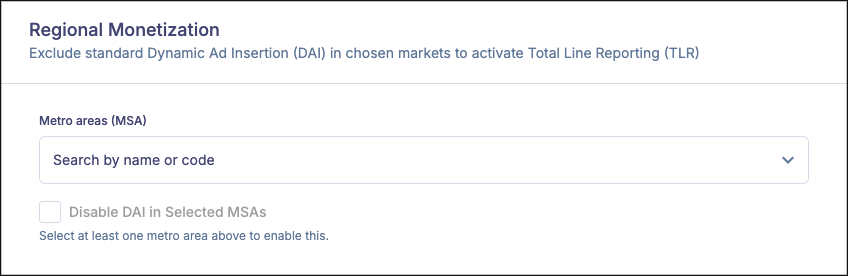
- Metro service areas (MSA): Type in this field to filter the list of metro areas to disable digital ad insertion (DAI). Click on the MSA or MSAs for which you wish to disable DAI.
- Disable DAI in Selected MSAs: Click this box to disable digital ad insertion for the selected MSA(s). When DAI is disabled for a selected MSA, listeners physically located in the MSA will hear the same ads playing on your terrestrial station.
- Once you are ready, press the Save button to complete the process.
Note: Fields marked with * are mandatory.Editing a publisher
Once you’ve created a publisher, you can configure the settings using these steps.
- Login to SoundStack Stream.
- From the left-side navigation menu, click on Publishers.
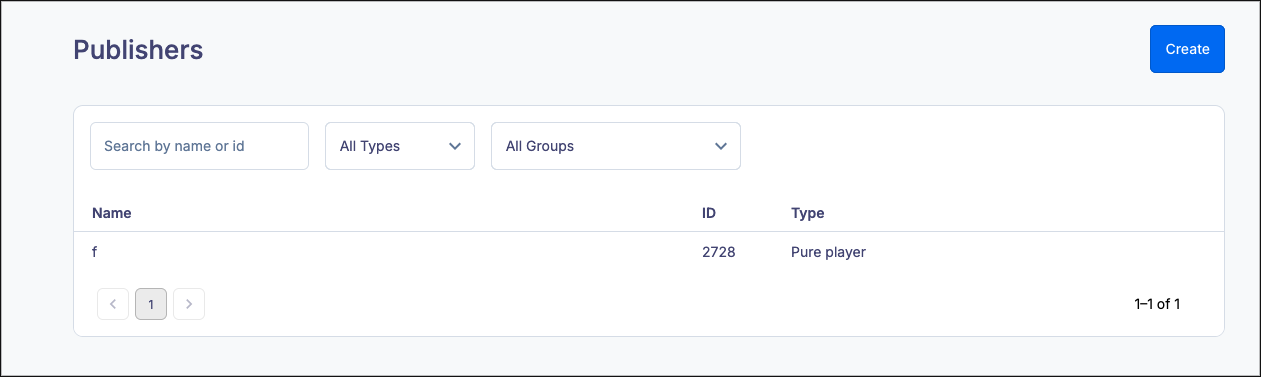
- Click on the name of the publisher you wish to edit
- Click on the “Configure” tab
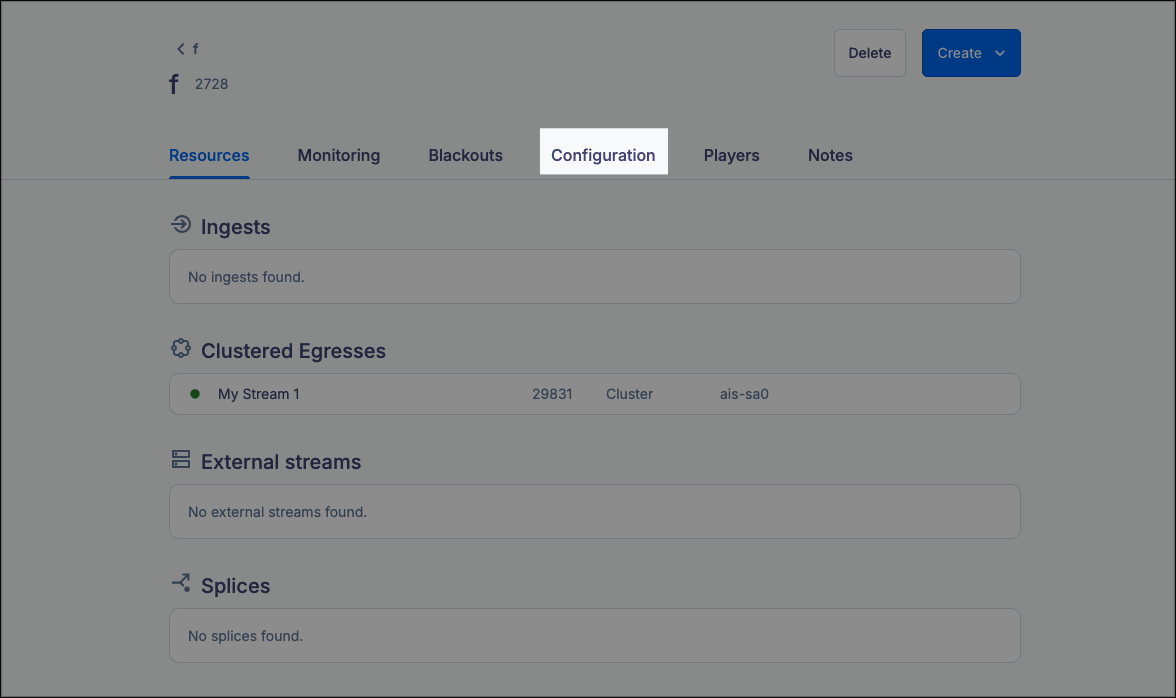
5. Update the fields as detailed in the steps listed in Create
6. Click Save to apply your changes
If you have any further questions or concerns please do not hesitate to contact our Support Team through the ticket submission form or by emailing us at support@soundstack.com.