
Let advertisers bid on your available ad space.
The Deals menu is the bridge between your inventory zones and programmatic ad connectors. You can filter your ad supply with targeting rules, control auction types, and set a floor price. You can also use deals to resell inventory from a publisher organization to a reseller one.
Deals Dashboard
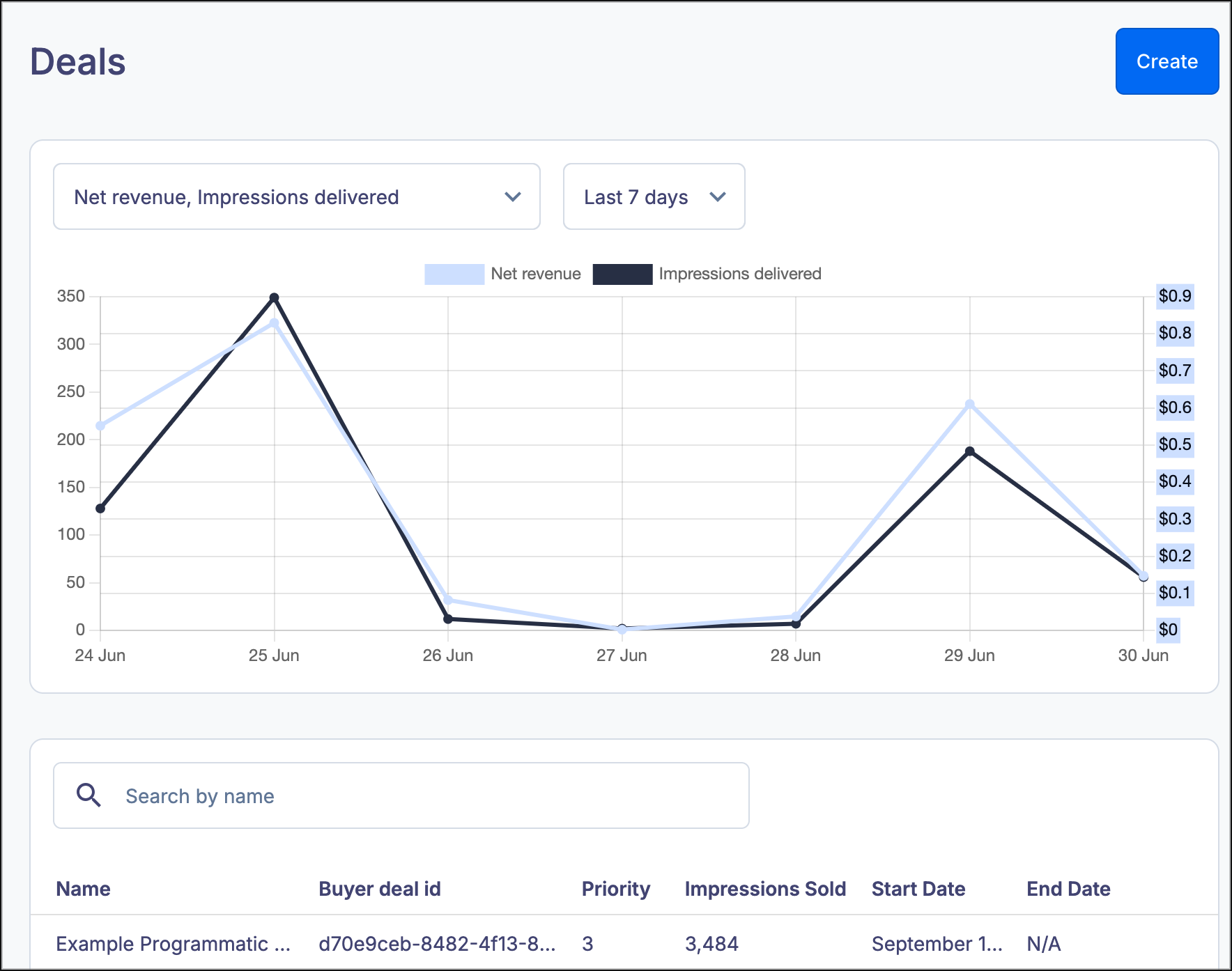
The Deals dashboard provides visibility into programmatic advertising performance and status.
You can display any combination of net revenue, impressions delivered, and win rate on the chart and view data in date ranges from today to the past month.
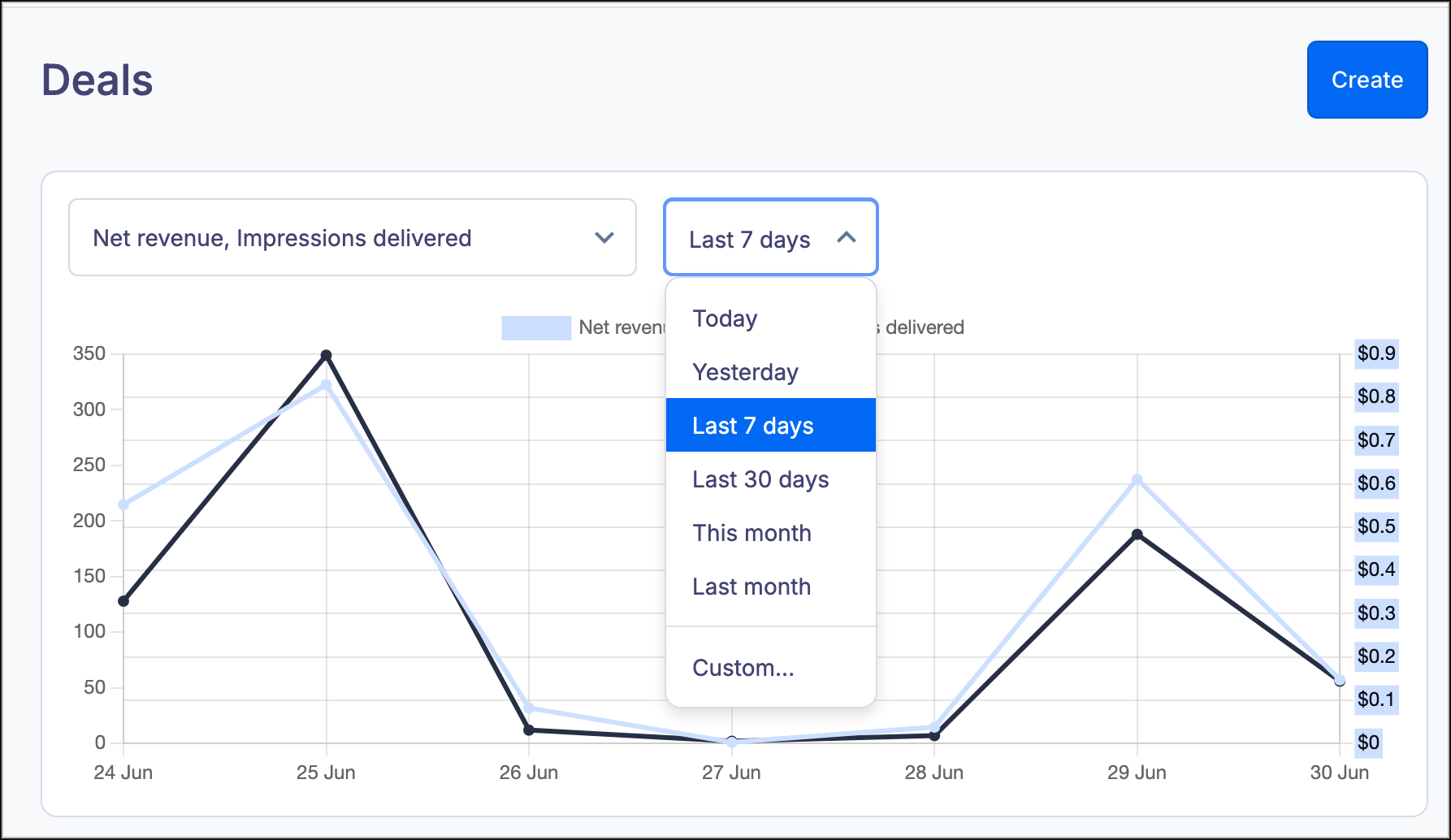
You can also set a custom date range by clicking on the date picker and selecting Custom.
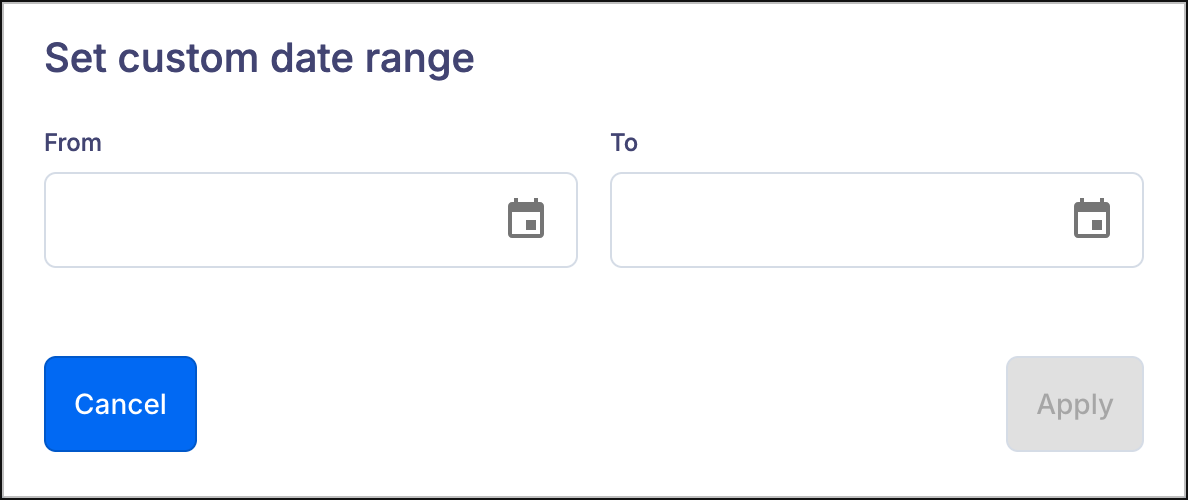
The From and To can be entered manually or can be selected by a date picker. If you leave the To field empty, the deal will run continuously.
The dashboard also shows at-a-glance information about your existing deals:
- Name: The name of the deal, as set when creating the deal
- Buyer Deal ID: A globally unique identifier that can be transmitted to certain partners and is written in reporting events
- Priority: How this deal will receive impressions relative to other programmatic deals. If you have two deals with the same priority and all other selection rules are equal, the deal to be served will be selected at random.
- A value of 1 is the highest priority, and a value of 16 is the lowest priority
- Impressions sold: The number of impressions delivered to listeners for the entire deal
- Start date: The date the deal began, as set when creating the deal
- End date: The date the deal concludes, as set when creating the deal
- “Always On” deals will have an End Date of N/A
Create a deal
To create a new deal, click on the Create button in the upper right corner.

Required fields are marked in this article and in the user interface with a red asterisk (*)
- Name: The name of a deal is used for display purposes in the UI
- We recommend choosing something short but clear
- To avoid confusion caused by duplicated items, the name of a deal must be unique under the selected Organization
- Deal type: Choose how the deal is scheduled and served to your listeners.
- Standard deal: Buyers compete for individual impressions in real-time bidding
- Programmatic Guaranteed deal: Buyers compete for a predetermined number of impressions at a set price
- Programmatic Guaranteed SOV deal: Buyers compete for a predetermined percentage (share of voice) of your total impressions
- Start date: The date when the deal will start being executed
- End date: The date when the deal will stop being executed
- For deals without a set end date or for deals intended to run indefinitely, select Always on
- Priority: How this deal will receive impressions relative to other programmatic deals. If you have two deals with the same priority and all other selection rules are equal, the deal to be served will be selected at random.
- A value of 1 is the highest priority, and a value of 16 is the lowest priority
- Demand connector: The ad service providing the programmatic ads
- For more information, see the Demand article
- When creating a deal with a reseller connector, the targeted zones will be created as “External” in the Reseller Organization indicated by the connector
- Buyer deal ID: A globally unique identifier that can be transmitted to certain partners and is written in reporting events
- When creating a new deal, this can either be manually set or automatically generated
- To manually set the Buyer deal ID, enter it in the blank field
- To automatically generate the Buyer deal ID, click Generate next to the field or leave the field blank when saving
- This ID must be unique for every deal
- When creating a new deal, this can either be manually set or automatically generated
- Auction type: How the auction will be conducted, used in conjunction with the Ask (gross) floor price
- First price: If the gross CPM of any programmatic ad is less than your set Ask (gross) floor price, the ad will not be included in the auction
- Fixed price: Used when advertisers or networks require a fixed-price auction type
- If the gross CPM of any programmatic ad is zero or is greater than your Ask (gross) floor price, the programmatic ad’s CPM will be set to the floor price
- If the gross CPM of any programmatic ad is greater than zero but less than your Ask (gross) floor price, the ad will not be included in the auction
- Ask (gross) floor price: Optional, a minimum CPM value in USD used to filter ads
- When empty, this sets the floor price to $0, meaning any bid greater than $0 will be accepted
- The higher the Ask price, the fewer ads will be available, but the remaining ads will be for a higher revenue
- Zones or zone groups: The inventory supply that will be used in this deal
- Only zones and/or zone groups that are selected will be targeted.
- Both internal and external zones or zone groups can be selected.
- Targeting: Define the criteria to further narrow down inventory, adding rules for geo-targeting, positions, publishers, etc.
- See the knowledge base article on Campaigns for more information on defining your inventory
Deal View
After a deal exists, you can get more information or edit a deal by clicking on the deal in the Deals dashboard.
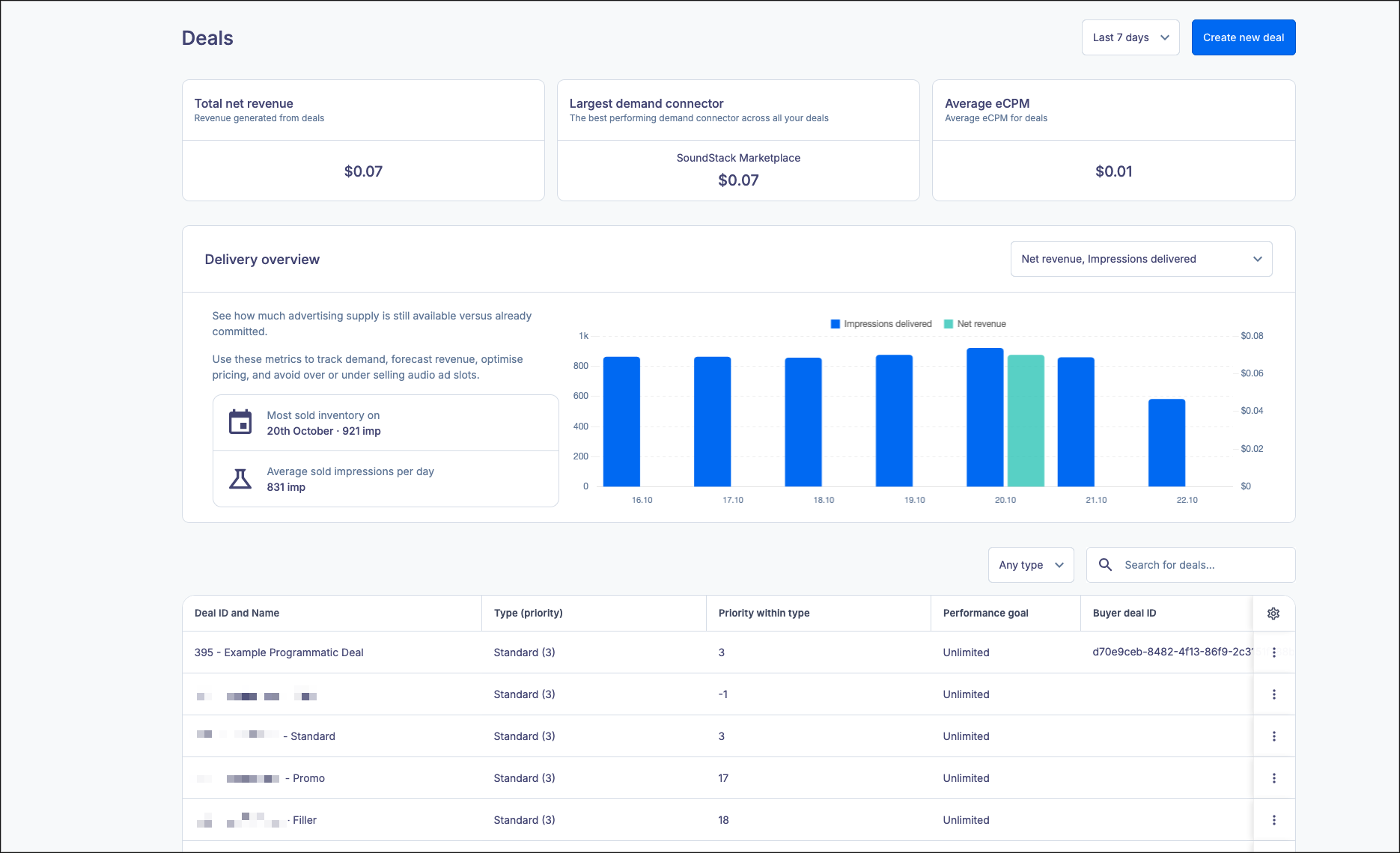
Summary
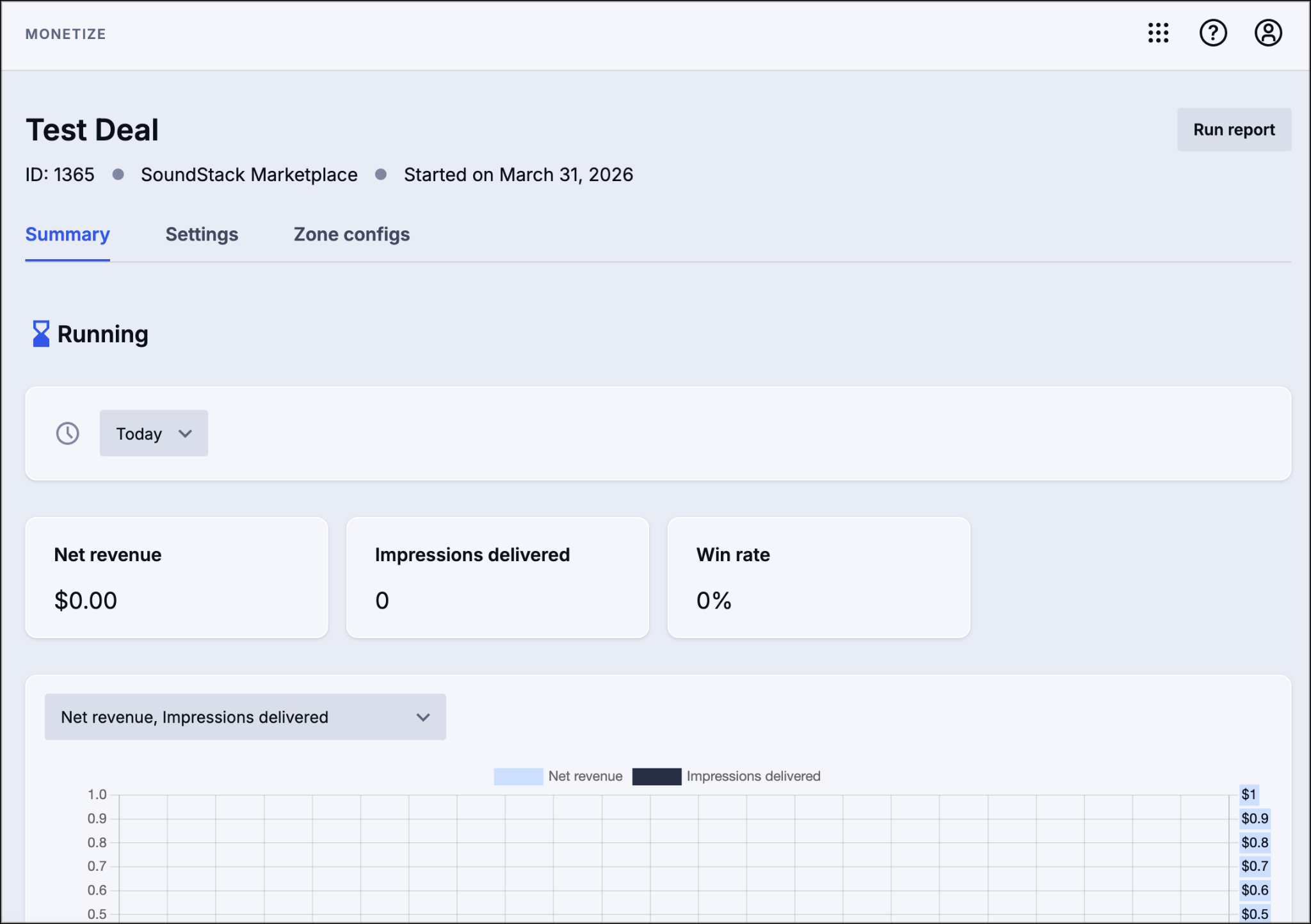
This screen lists the important information about the deal, including:
- Name
- ID: A system-generated ID that is created when the deal is created
- Demand connector
- Start date
- The status of the deal
- Running: Will appear whenever the end date is not set or has not been reached
Note: "Running" will appear even if the start date has not been reached and the ad is not yet active.
- Approved: Will appear whenever the end date of a deal has been reached
You can view statistics on the deal based on your selected time frame. You can view time frames from Today to All Time.
- Net revenue: The amount the ad has earned today, after fees
- Impressions delivered: The total number of listener impressions delivered by the campaign
- Win rate: Reports auction competitiveness and is calculated as bids won divided by bid responses
Settings
This screen allows you to edit your in-progress or completed deals. View the section on creating a deal for explanations of each field.
Once you’ve adjusted your settings, click Save, or the changes will not be applied.

You can also delete a deal by clicking Delete. Deleted deals cannot be recovered.
Deal Health
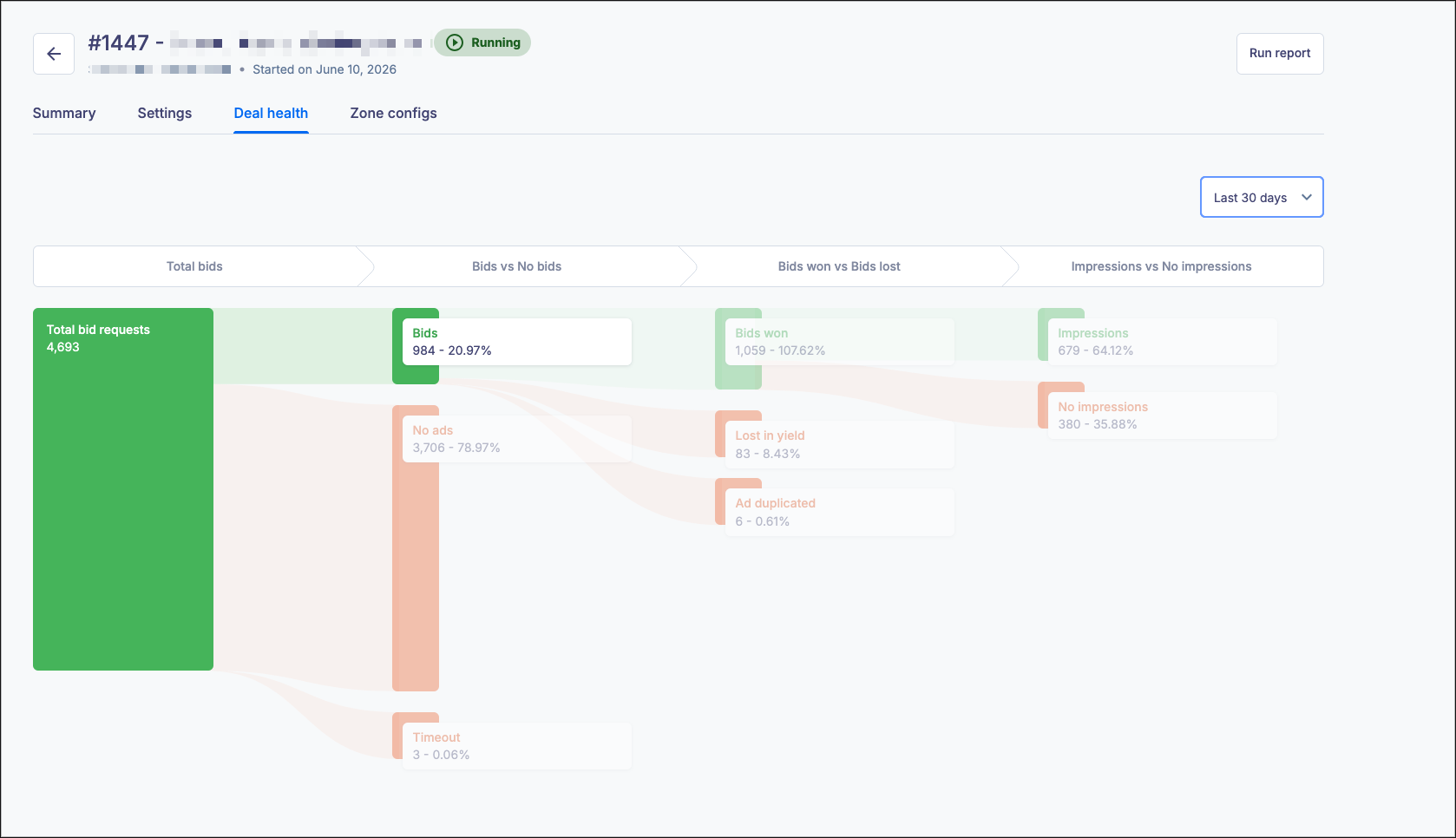
The deal health screen gives you a breakdown of your deal performance, showing the full results of your deal in a Sankey diagram. It can display data from today through All Time.
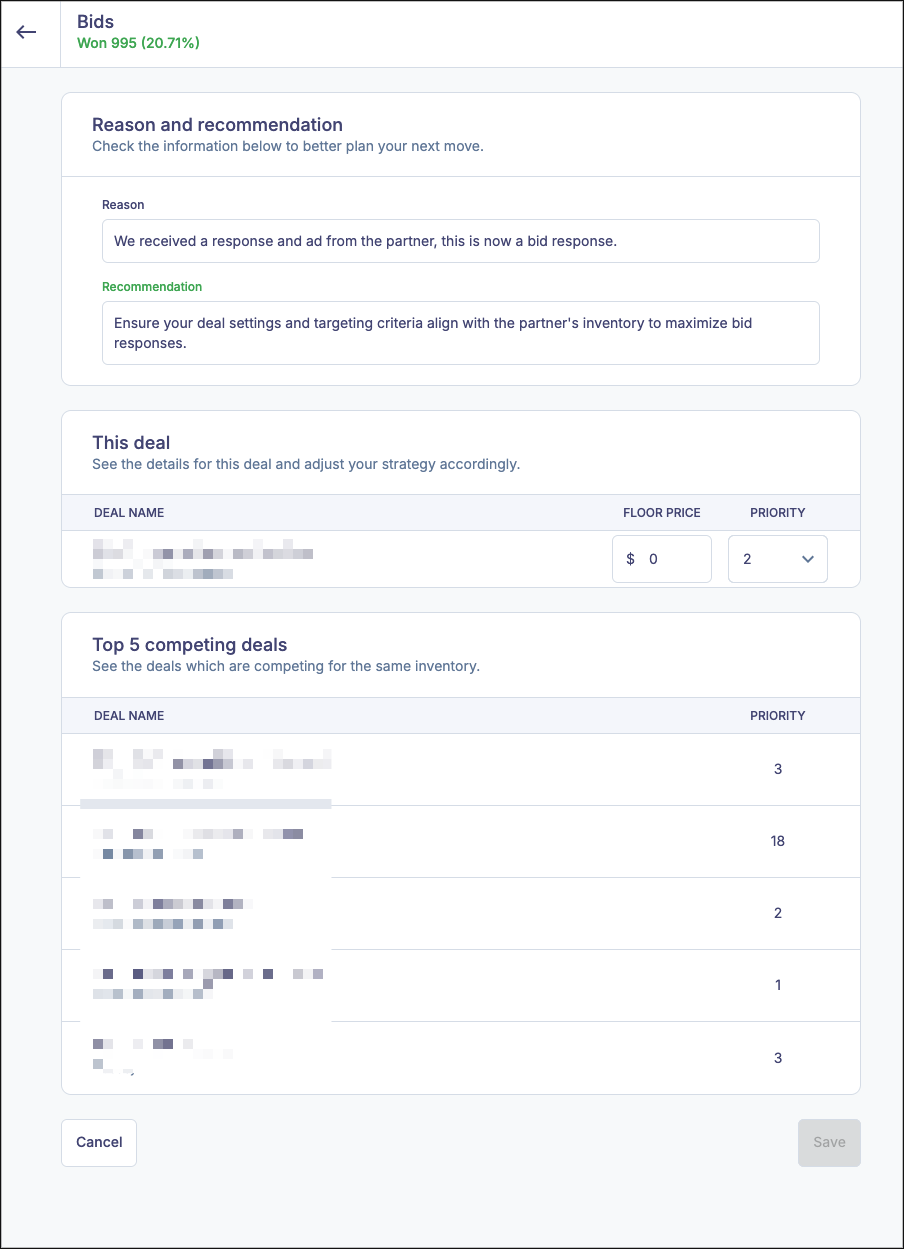
You can click on any of the segments of the Sankey diagram to get more information about what the result means and recommendations on what to do to increase your chances of success later. You can also modify the deal’s floor price and priority to better respond to the information provided by the deal health report. Additionally, you can view which of your other deals are competing for the same inventory, giving you visibility into how your different deals impact each other when inserting ads.
The diagram provides the following information:
- Total bids: The total number of bid requests during the selected time period.
- Bids vs. no bids: Gives information on whether a bid response contained an ad, whether there was a timeout, or whether the bid was successful. What happened to the bid requests; if there was an ad that matched the request or if the request timed out.
- Bids won vs. Bids lost: Gives information on how the auction performed, and if the bid was lost, tells why the bid was lost.
- Impressions vs. No impressions: Displays how many impressions the ad received and flags if the ad was returned but not inserted or if the ad did not return an impression report.
If you have any further questions or concerns please do not hesitate to contact our Support Team through the ticket submission form or by emailing us at support@soundstack.com.