
Ad control uses SoundStack AI to analyze, transcribe, and categorize programmatic ads, granting you greater visibility on incoming ads and allowing you to block unwanted ads. This is a premium feature, so if it’s not enabled on your account, contact support@soundstack.com to learn more.
Activating Ad Control
You can activate Ad Control on the Settings menu. For more instructions, see the [Settings] article.
The Ad Control Dashboard
Access the Ad Control dashboard by clicking Ad Control on the left-side navigation bar, under the Programmatic heading.
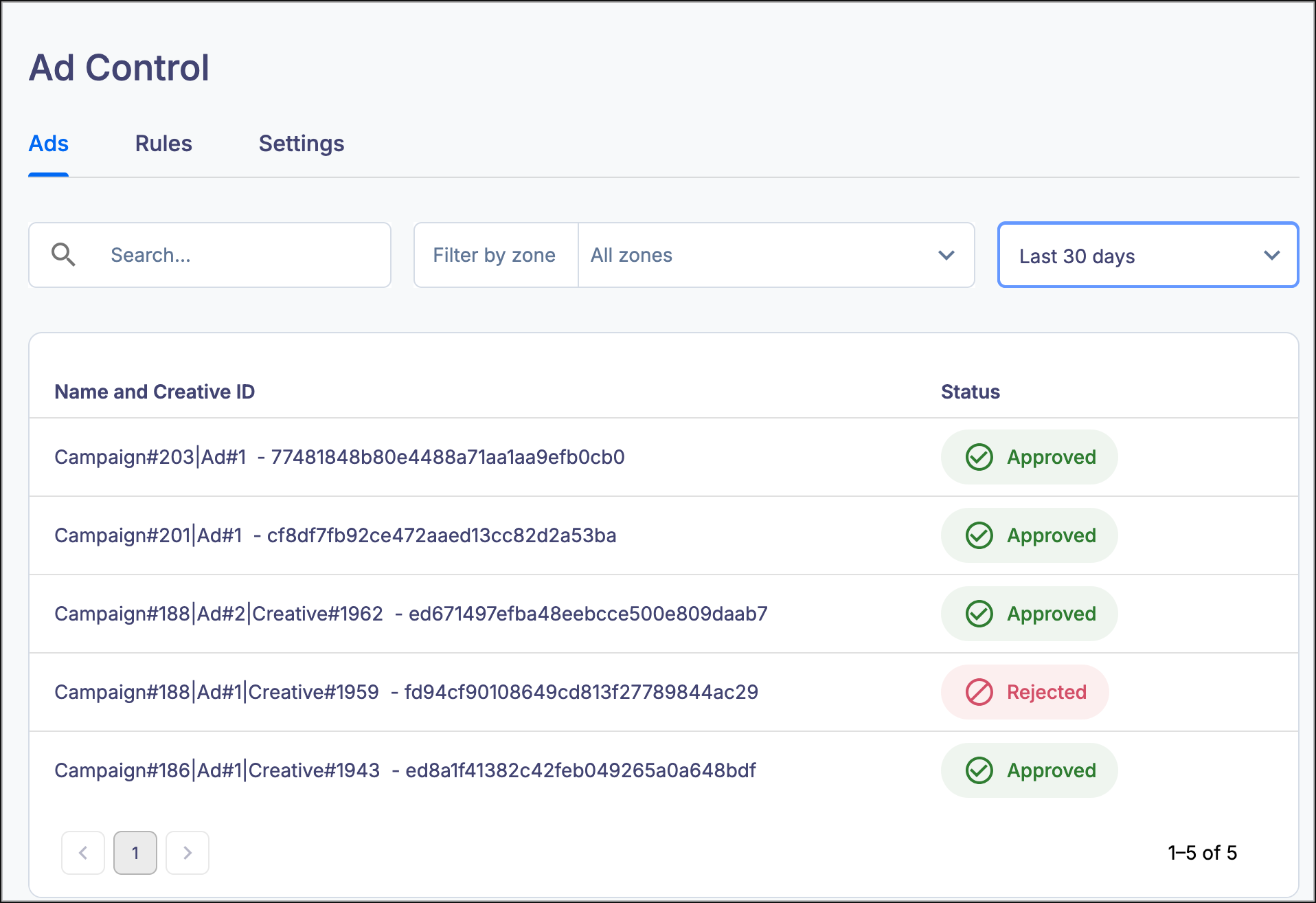
The dashboard displays all new ads available to run on your selected inventory zone. You can filter by zone and by date range in the upper-right corner.
- Creative ID and Name
- The unique identifier and name of the ad, as set by the advertiser
- This column also lists the IAB categories, as detected by SoundStack AI
- Status
- The approval status of the advertiser
- Approved: This ad can play on your selected inventory zone
- Rejected: This ad cannot play on your selected inventory zone
- Pending: This ad has not yet been evaluated for approval
- When your Ad Control approval setting is “Block all new ads until manually approved”, incoming ads will automatically enter in the Pending status
- The approval status of the advertiser
Clicking on the ad line opens up the Ad Details Panel.
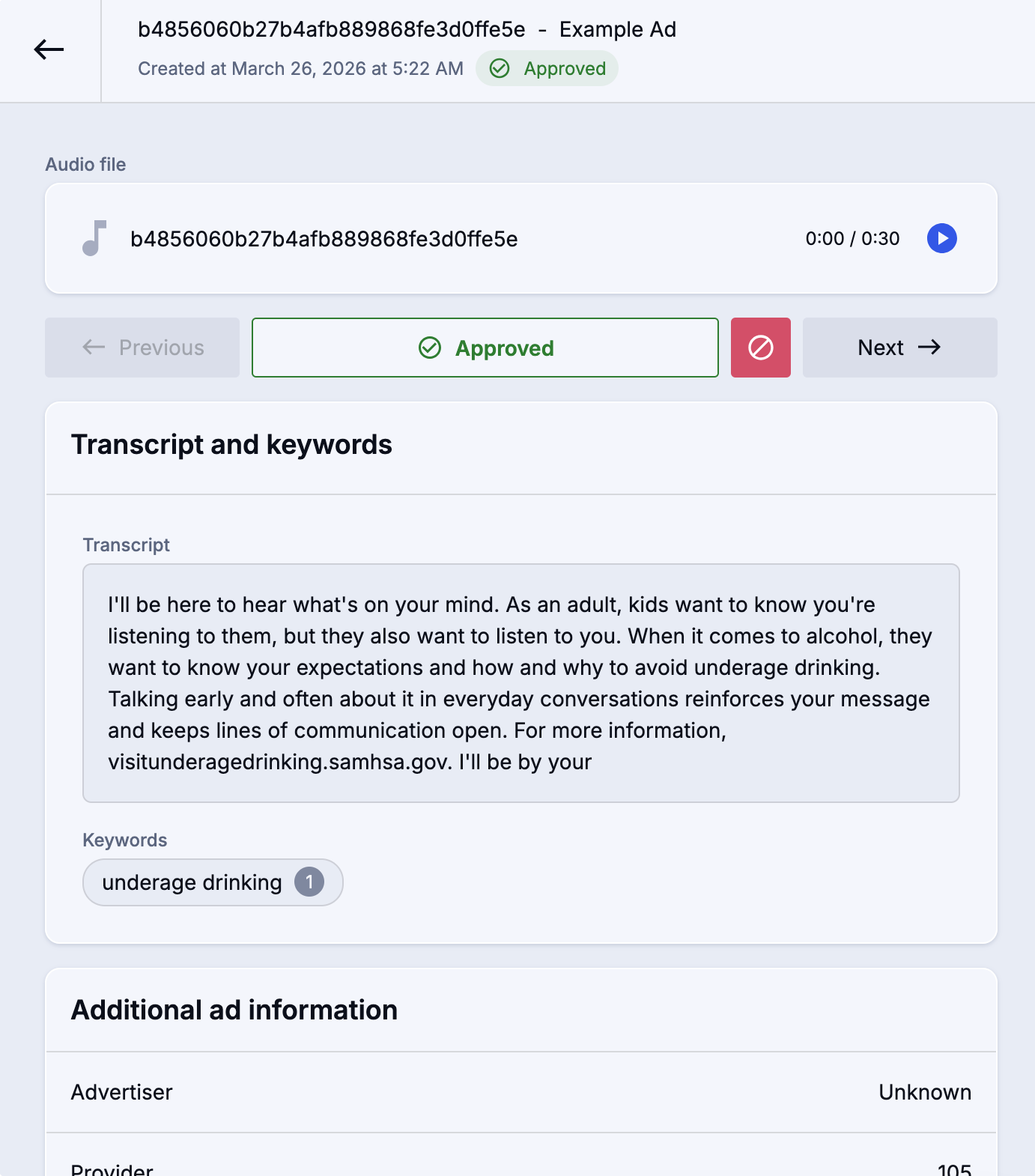
- Audio File
- Allows you to listen directly to the creative for the advertisement
- Previous/Next
- Allows you to move to the prior or following ad to review
- Approved/Rejected
- This allows you to update the approved/denied setting once set
- If the ad is in a pending state, you will see this view

- Click “Approve this ad” to allow it to play in your inventory zone
- Click “Reject this ad” to prevent it from playing in your inventory zone
- Transcript and keywords
- SoundStack AI analyzes and transcribes the ad audio to give a visual reference of the ad contents
- SoundStack AI will also flag keywords to give you information on the ad’s contents
Additional Ad Information
In addition to listening to the ad or reading a transcript, you can learn more about the ad from this screen.
- Advertiser: The advertiser name, as sent in the ad response from the programmatic network
- Provider: The name of the ad network or subsidiary, as sent in the ad response from the programmatic network
- SoundStack AI detected language/Advertiser declared language
- The actual language of the ad, as determined by AI vs. the language that the advertiser lists as the ad language
- You can use this to determine if the language declared by the advertiser really matches the actual language of the ad
- SoundStack AI detected categories/Advertiser-declared categories
- The categories determined by AI vs. the categories that the advertiser claims apply to the ad
- You can use this to determine if the ad contains content not disclosed by the advertiser
Rules
Ad control rules allow you to automatically approve or deny ads based on specific criteria. Click on the Rules tab to access the rules menu. Here you can view, search, and filter for existing rules or create new rules.
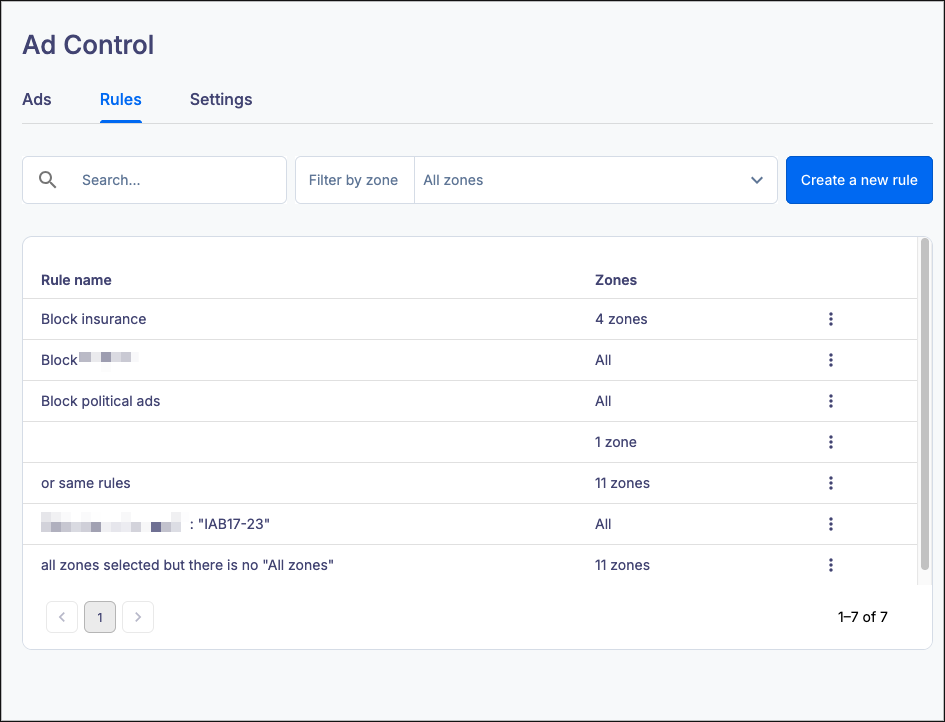
Important: Rules are evaluated in the order they were created. If you make two rules against the same inventory that conflict (For example: rules to “Approve all ads in English” and “Deny all ads with the IAB category Scrapbooking”) the rule that was created first will be the only one that triggers. We recommend using Add a Condition and Operator in the same rule to set multiple conditions (For example: “Approve all ads in English AND approve all ads that does not equal IAB category Scrapbooking”).
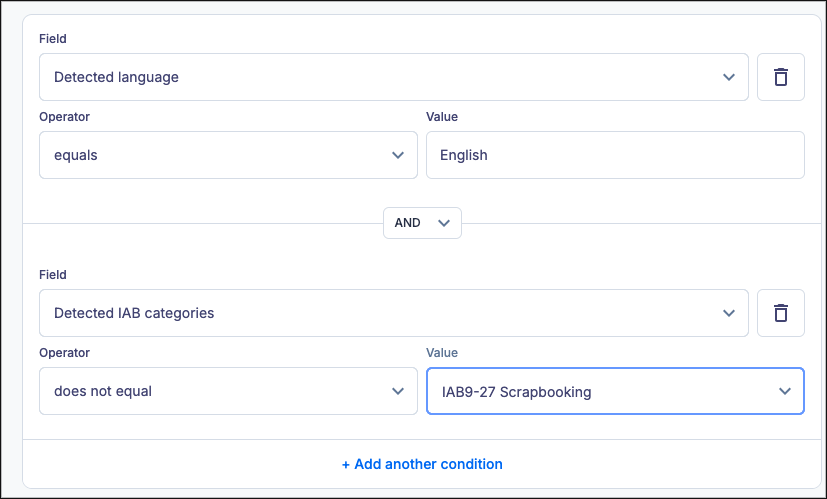
Creating new rules
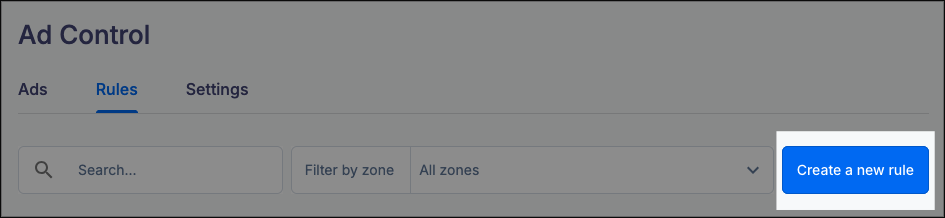
To create a new rule, click on the Create a new rule button.
This will open the Create a new ad control rule menu.
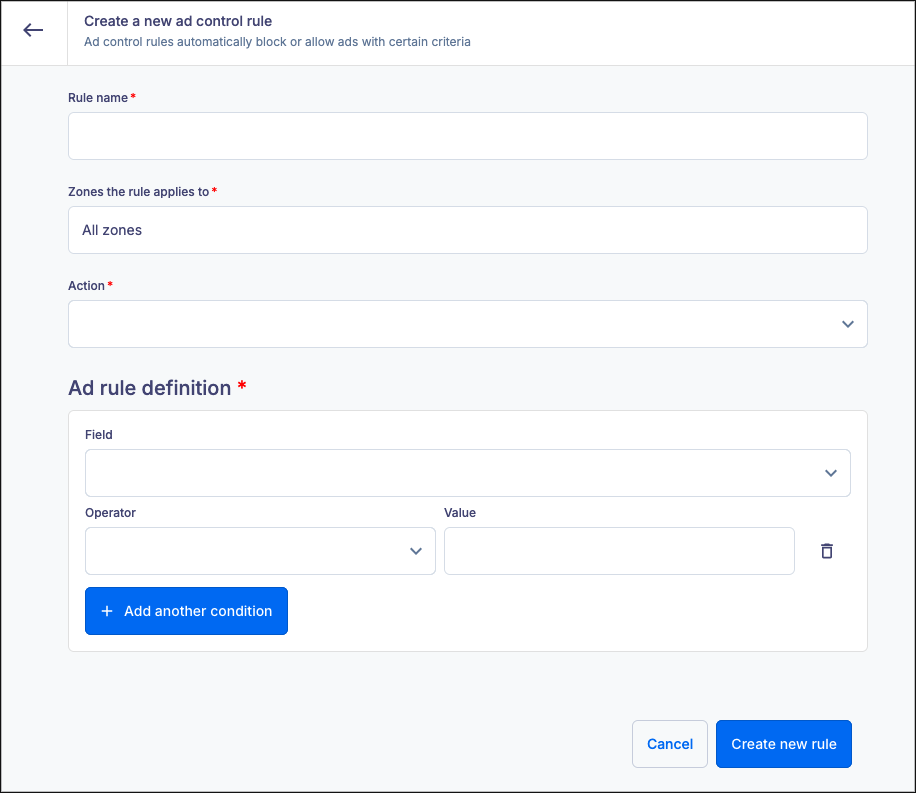
Fill out the following fields to create your rule.
- Rule name: A descriptive name you can use to identify the rule later. For example: “USA Only” for a rule that only approves ads located in the United States of America.
- Zones the rule applies to: Allows you to specify which inventory zones the rule applies to. Clicking on this line opens the Select zones the rule applies to menu.
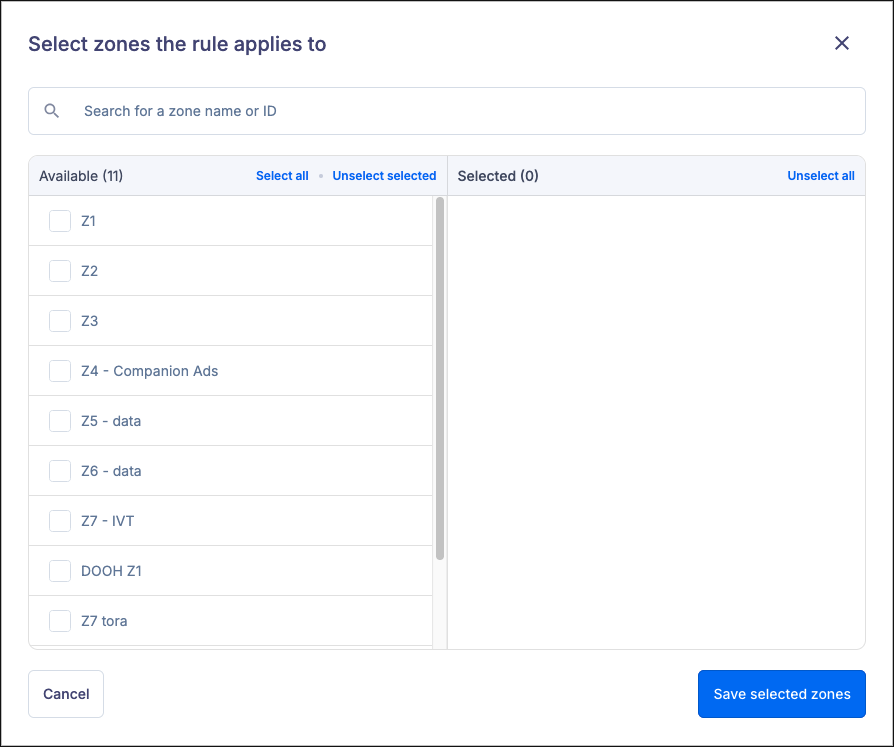
Here you can select one or more inventory zones, search for specific zones to include and remove zones you previously selected.
- Action: Choose if this is a rule that automatically approves or automatically blocks that match the rule criteria.
- I want to block: Any ad that matches the rule definition in the selected zone will be automatically blocked.
- I want to approve: Any ad that matches the rule definition in the selected zone will be automatically approved.
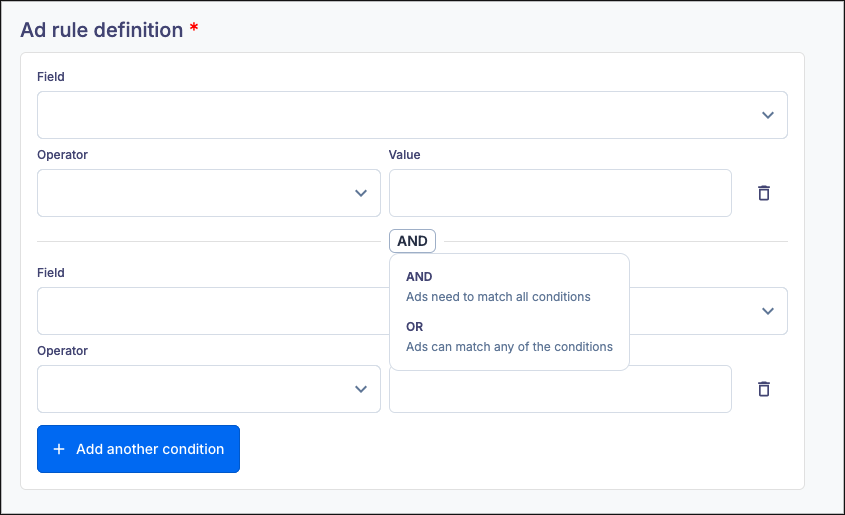
- Ad rule definition: Set the parameters of the rule.
- Field: The field name that will be evaluated when deciding if an ad will be allowed or blocked.
- Operator: Changes depending on the field, used to determine if the rule triggers when the content in the rule value matches, partially matches, or does not match the specified field in the ad.
- Equals: The rule triggers when the content in the specified ad field exactly matches the specified value.
- Example: Set a rule where Field is "Advertiser Name" and Operator is "Equals" to the value "Acme Corp" to specifically target ads from that one advertiser.
- Is any of:The rule triggers when any of the words contained in the value match any of the words in the specified ad field.
- Example: Set a rule where Field is "IAB Category" and Operator is "Is any of" to values like "Gambling, Tobacco, Alcohol" to quickly block a list of sensitive categories at once.
- Is not any of: The rule triggers when none of the words contained in the value match any of the words in the specified ad field.
- Example: Set a rule where Field is "Language" and Operator is "Is not any of" to "English, Spanish” to automatically block ads that are not in English or Spanish.
- Does not equal: The rule triggers when the content in the specified ad field does not exactly match the specified value.
- Example: Set a rule where Field is "Provider" and Operator is "Does not equal" to "377" to block ads coming from any provider except the Soundstack marketplace.
- Contains: The rule triggers when the content in the specified ad field partially matches the specified value.
- Example: Set a rule where Field is "Transcript" and Operator is "Contains" the value "clearance sale" to block any ads that mention a clearance sale in the audio transcript.
- Does not contain: The rule triggers when the content in the specified ad field does not exactly match any part of the specified value.
- Example: Set a rule to approve ads where Field is "Transcript" and Operator is "Does not contain" the value "competitor name" to ensure your inventory stays free of ads mentioning a specific competitor.
- Equals: The rule triggers when the content in the specified ad field exactly matches the specified value.
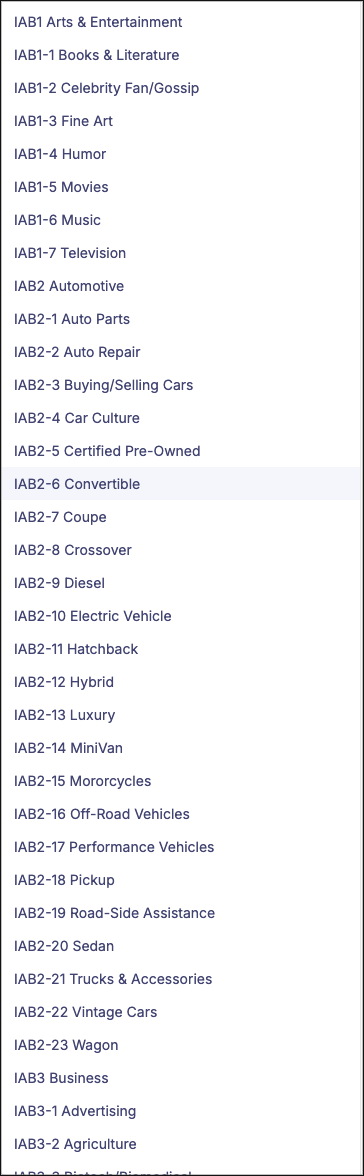
- Value: The text or number to evaluate the rule against. Some fields, like IAB Category, will activate a dropdown selection menu to choose from.
Click Add another condition to add an additional set of definitions to this rule. Conditions can be linked by AND (All rules must match to trigger the condition) or by OR (any rule must match to trigger the condition). Click on the AND conjunction to choose between AND and OR. Click on the Trash can icon to delete a condition.
Click Create new rule to add the rule to your list of rules. Click Cancel to discard this rule and return to the Rules menu.
Deleting Rules
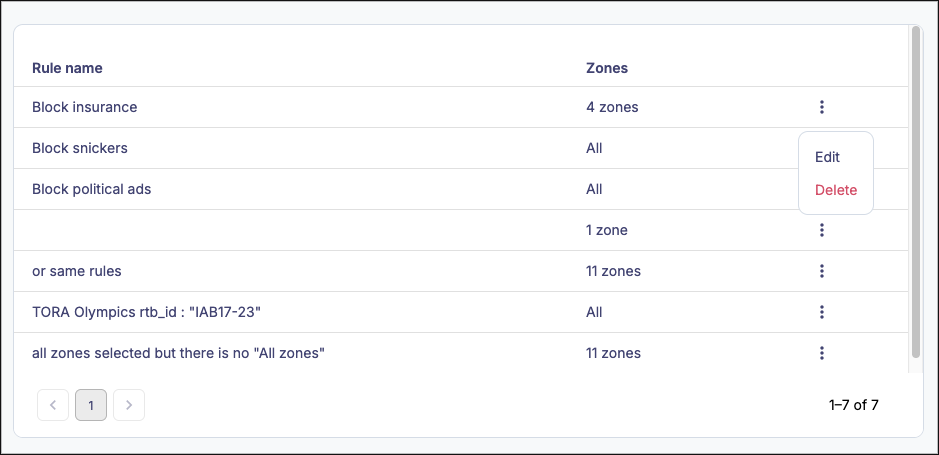
To delete a rule, click on the three dot icon next to the rule to be deleted and select Delete. Deleted rules cannot be recovered.
Editing Rules
To edit an existing rule, either click anywhere on the rule’s line or click on the three-dot icon next to the rule to be edited and select Edit.
All of the fields used during field creation can be edited at any time.
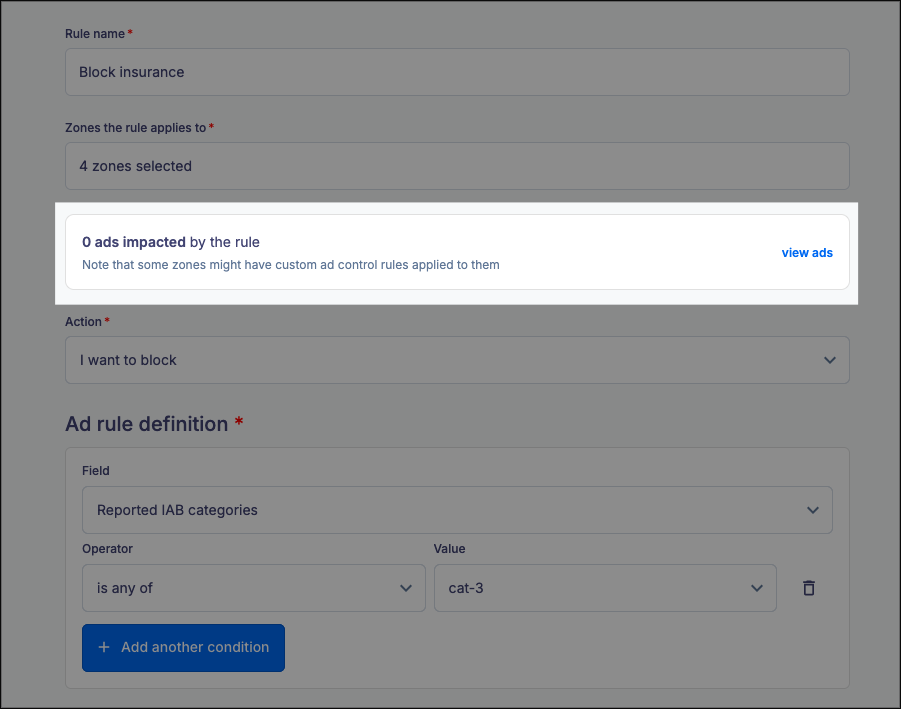
Additionally, you can view which ads have been impacted by the rule on the Edit screen, as seen below. You can view affected ads by clicking View ads.
If you have any further questions or concerns please do not hesitate to contact our Support Team through the ticket submission form or by emailing us at support@soundstack.com.