
The persistent player supports seamless audio playback across page views.
Role Setup
Your Administrators must give your users access to add the player, using SoundStack's role-based access control (RBAC).
- Go to the Stream app (stream.soundstack.com).
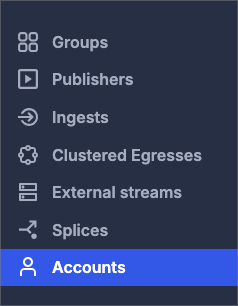
- Click on Accounts in the sidebar
- Search for the User account to receive access.
Note: Admin accounts have full access already. Only User accounts need additional access.
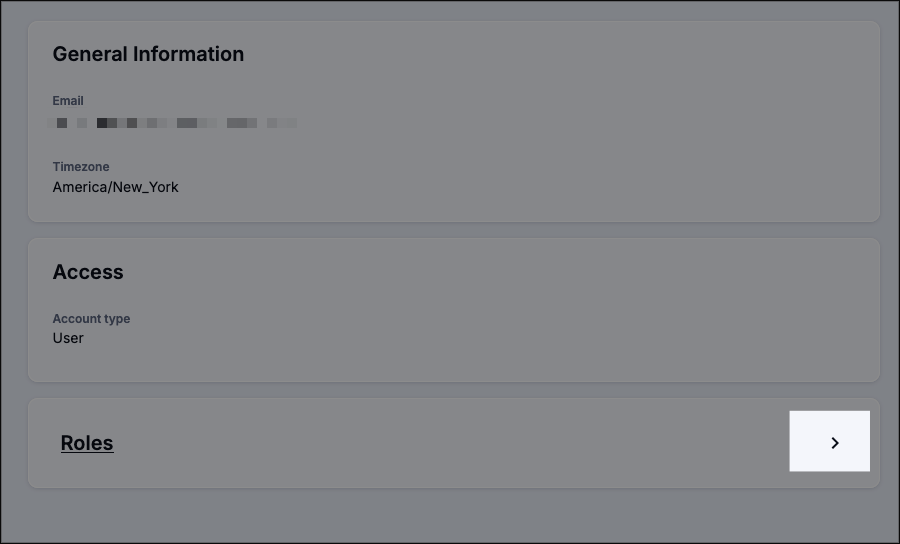
- Click on the desired User account
- Click on the arrow in the Roles section
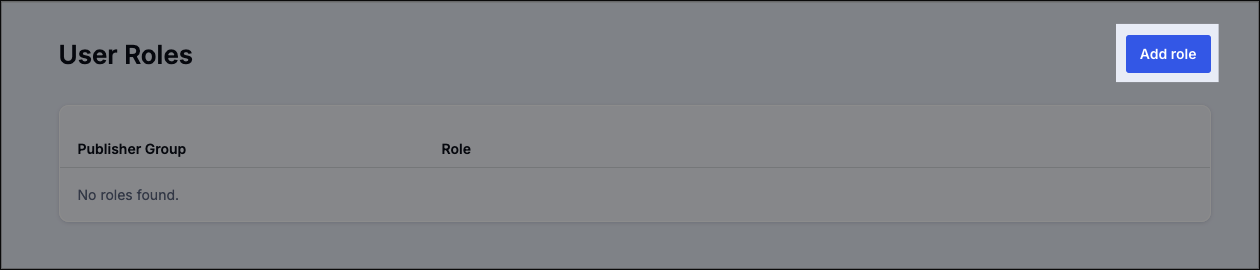
- Click the Add Role button
- Select one or more publisher groups to receive access
- Select the Player manager role
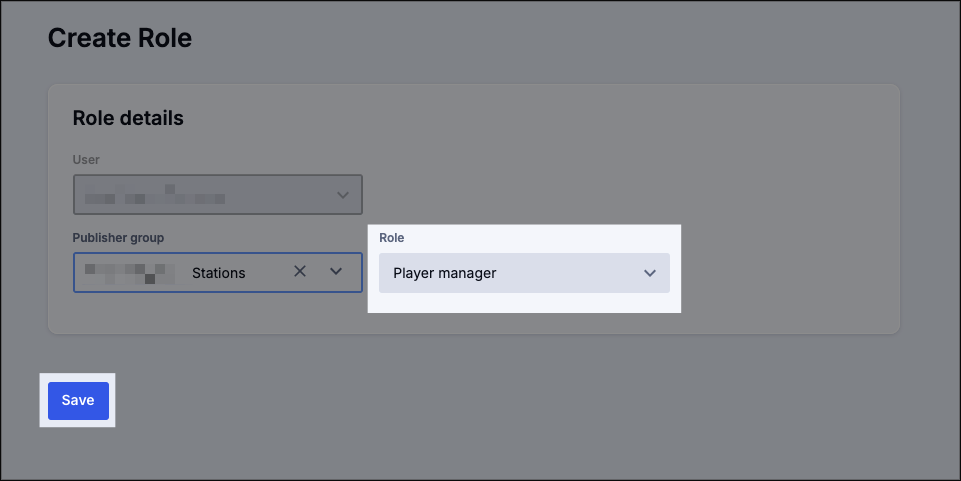
- Click Save
The User can now manage (create, edit, and delete) players for the selected publisher groups. Please note that the User will be able choose from all clustered egresses (a.k.a. "streams") under those publisher groups.
Player Setup
We recommend testing setup in a staging environment before adding the player to a public-facing website in case there are any issues.
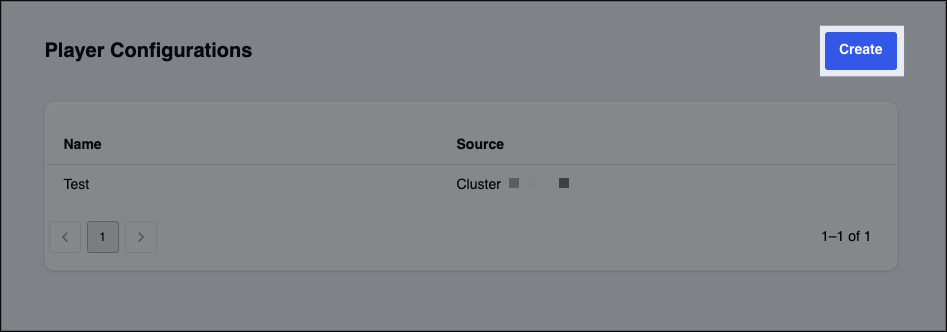
You can create a new player by visiting https://players.soundstack.com/ and clicking the Create button in the upper right side of the screen.
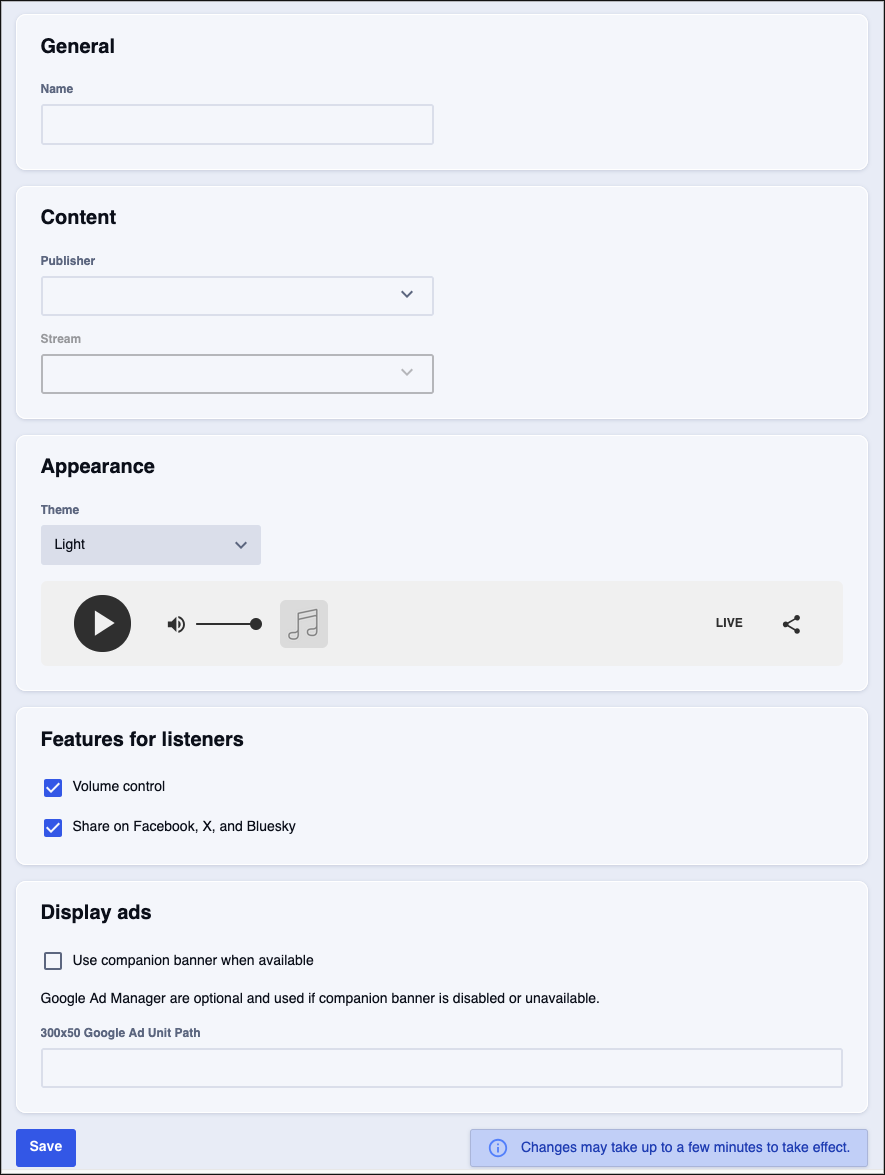
- Name: A name that will help you and your colleagues identify the player
- Publisher: The content associated with the player
- Steam: The specific content stream from the selected publisher that you want the player to connect to
- Theme: The color of the player
- Dark
- Light
- Custom: Custom themes can be set with a color from the color-picker or using a hex code
- Volume control: Toggle the listener-facing volume control on or off
- Share on Facebook, X, and Bluesky: Toggle the listener-facing share control on or off
- Sharing a station to one of these social media platforms will share a link to the station with the text “Check out this great radio station!”
- User companion banner when available: Adds images or HTML sent by the advertiser to the borders of the player during ad breaks.
- 300x50 Google ad unit path: The path to use for any Google Ad Manager feeds
- These will be used if the companion banner is unavailable or not enabled
Click Save to retain any changes.
The Player URL
To create a player URL you can insert into your site, you first need a config path.
Click the Copy Config Path button at the player configuration page to copy the path to the clipboard.
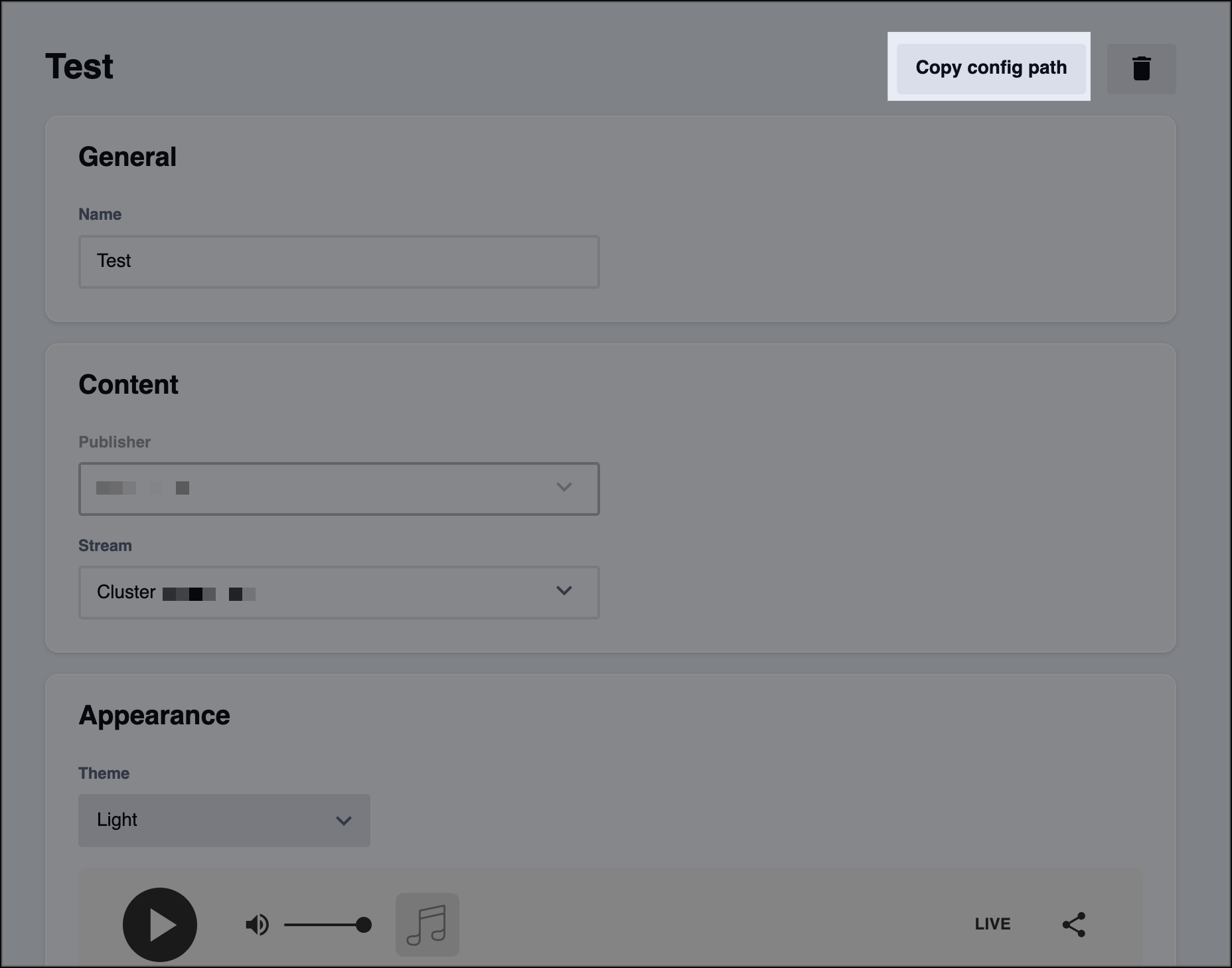
In the HTML of the target website, insert the URL Players.Soundstack.com/persistent-player?sid=<config path> replacing <config path> with the path you copied to the clipboard.
If you have any further questions or concerns please do not hesitate to contact our Support Team through the ticket submission form or by emailing us at support@soundstack.com.